Filter and Search
The filter and search options let you view specific information in the Device Status page, preventing irrelevant information from cluttering the page. After retrieving data, you can clear the filter to return the page to its default view. Search can be performed either by entering free text in the search box or by configuring parameters in the Filter dialog.
| ➢ | To filter data: |
| 1. | Select the |
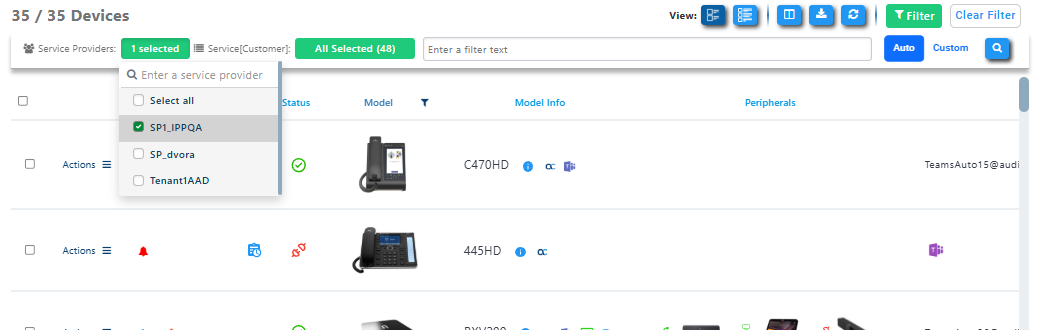
If more than one
| 2. | If relevant, select the customer service or services you wish to search. |
| 3. | Do either of the following: |
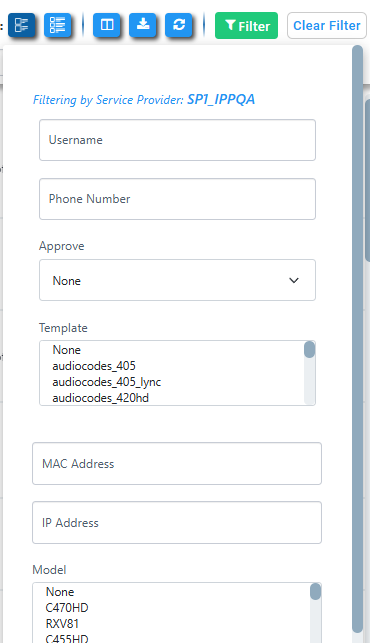
| ● | Click  to display the Filter dialog. Select the requested search parameters, then scroll down and click Filter. In the dialog, you can also specify the number of search results to be displayed per page. to display the Filter dialog. Select the requested search parameters, then scroll down and click Filter. In the dialog, you can also specify the number of search results to be displayed per page. |
| ● | In the search field, enter the searched parameter value, then click  (the search icon). To perform the search on the text exactly as entered, click Custom; if Auto is selected, the value may be reformatted for the search. (the search icon). To perform the search on the text exactly as entered, click Custom; if Auto is selected, the value may be reformatted for the search. |

The search results are displayed.
Clicking  returns the Device Status page to the default view for the selected